 ConnectOnion
Quick Start
Inspect your environment, connect Outlook and Gmail, then use the same co commands for mail, browser, files and chat.
Every step here is a co command you run in your terminal. First see the
environment your agent uses; then connect Outlook, Gmail, a browser or another
service and run its command. You won't write Python or need an API key. The
output shown is what the CLI prints, with addresses shortened.
1. Install
pip install connectonion
Python 3.10 or newer. This installs the co command.
2. Give your agent an identity
co init
🚀 Welcome to ConnectOnion!
✨ Setting up global configuration...
  ✓ Generated master keypair
  ✓ Your address: 0xcbef...3318
  ✓ Created ~/.co/keys.env
✓ Saved to ~/.co/keys.env
✓ Authenticated (Balance: $5.00)
✓ Global configuration: ~/.co/keys.env
That one command gives your agent three things:
- a keypair and a
0xaddress, which is its identity everywhere - an OpenOnion account with $5 of credit for managed models, so no OpenAI, Anthropic or Google key is needed to start
- its own mailbox at
0x…@mail.openonion.ai
See it all with co status:
│ Agent Address:
│ 0xcbef…3318
│ Email: 0xcbef…@mail.openonion.ai
│ Balance: $5.0000
co status also lists every credential it can see (OpenAI, Anthropic, Gemini,
Telegram, Discord …) and keeps the values hidden.
3. Inspect and choose your environment
co env                      # values hidden, with their source
co env path                 # the selected settings file
By default, commands use the global ~/.co/keys.env, even when you are in a
project directory. co init ./ explicitly adds ConnectOnion to the current
project; it does not automatically select that project's .env for later
CLI commands. To use that file, put --env-file before each command:
co init ./
co --env-file ./.env env
co --env-file ./.env outlook
The selected file replaces the global one; missing values do not fall back to
global settings. co env redacts values by default. Use co env set KEY VALUE
for ordinary settings, but connect Google and Microsoft with co auth so their
token records stay together. Don't put revealed values or co env get output
in shared logs. → co env · Environment selection
4. Send and read email
co email inbox
Inbox: no emails
Send one: co email send <to> "<subject>" "<body>"
co email send you@example.com "Hello" "Sent by my agent."
The mailbox is hosted by OpenOnion, so you don't need an email provider or any DNS records. → co email
5. Connect Gmail
co auth google
Opening Google consent. Credentials will be saved only on this computer.
Google connected. Actual granted scopes saved locally. Next: co status
Consent runs through OpenOnion's Google app, so you don't create a Google Cloud project or a consent screen. The credentials come back encrypted to a one-time key your CLI generated. Then:
co gmail inbox                 # recent mail, numbered, with a listing ID
co gmail read 1 --listing <id> # one email's full body
co gmail reply 1 "Thanks, on it." --listing <id>
co gcalendar today             # today's events
co gdrive list                 # recent Drive files
→ co gmail · co gcalendar · co gdrive
6. Connect Outlook
co auth microsoft                  # once, opens Microsoft consent
co outlook                         # recent inbox, numbered with a listing ID
co outlook read 1 --listing <id>   # use the ID printed by your own inbox
co outlook calendar today          # today's calendar
Reading a message does not mark it read unless you add --mark-read.
Outlook also has explicit send, reply and contacts commands. For a separate
project account, use the same selector for authorization and every operation:
co --env-file ./.env auth microsoft
co --env-file ./.env outlook
The aha moment: work across environments
After connecting the services you need, imagine asking your coding agent:
“Read the context from my Telegram bot, check the official docs, ask a
teammate's agent to run an allowed check, then email me a summary.” The visible commands
would be co telegram receive, co search and co fetch, co call, and
finally co email send with an explicit recipient.
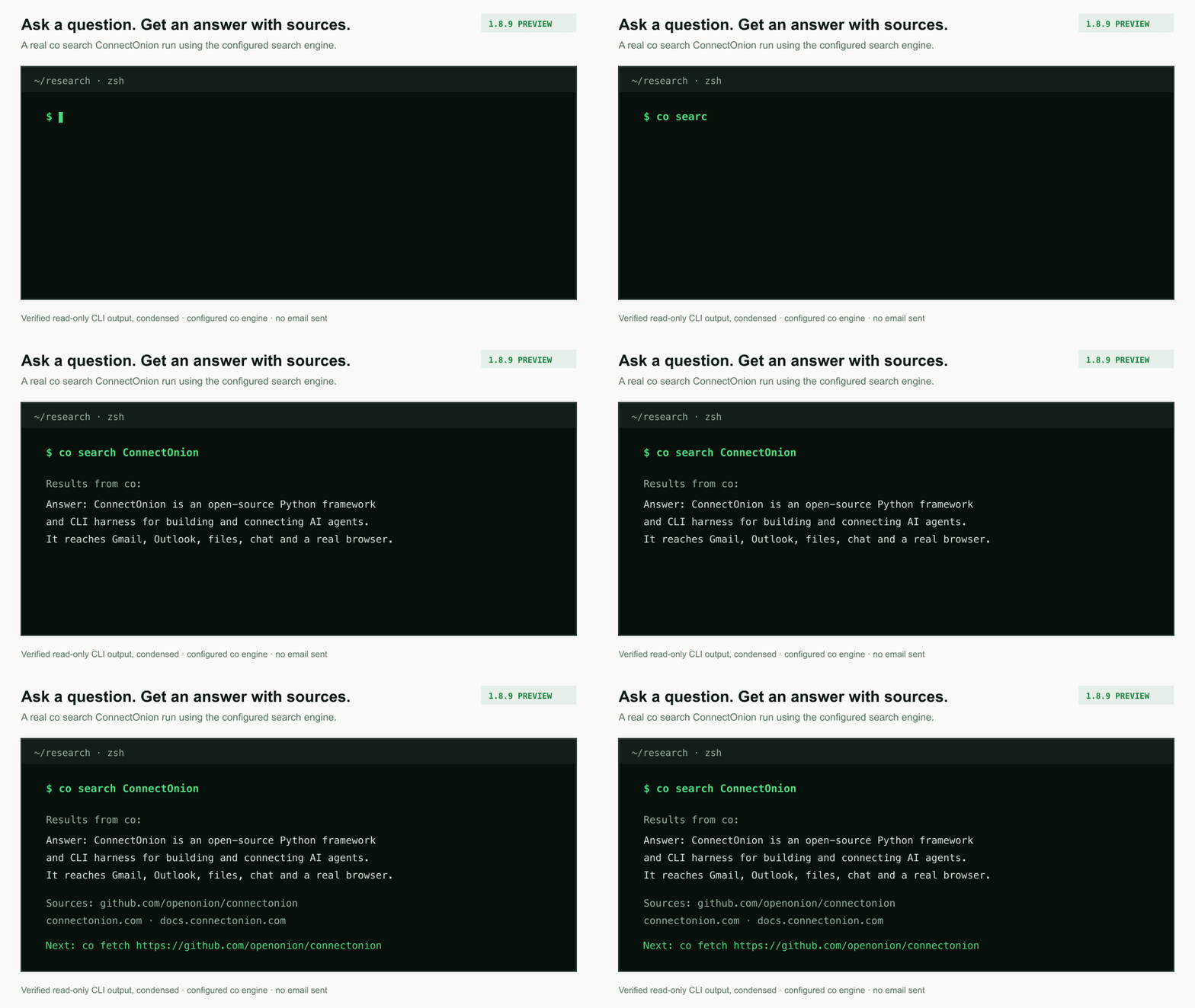
This GIF shows only a verified read-only co search ConnectOnion answer,
not the full workflow. The configured search engine may use account credits;
co search is in the 1.8.9 preview. Telegram receive is
experimental and reads only messages delivered to a bot you control. A remote
agent must be reachable and allow the requested command; using that agent's
Codex additionally requires Codex to be installed, authenticated and permitted
there. Sending email is a separate, authorized action. No Telegram message,
remote agent or email was used for the GIF.
7. Drive a browser
co browser go_to https://example.com
co browser get_text
co browser "find the pricing page and summarise the plans"
co browser keeps one real browser open, so a login you finish by hand,
2FA included, stays valid for every later command. co browser help lists
every function. → co browser
8. Chat apps
co whatsapp listen             # scan the QR once; every message becomes a file
co whatsapp receive            # the next message, as one JSON line
co telegram send <chat> "Deploy finished."
Feishu, Lark and Discord use the same verbs (listen, receive, send,
reply). SMS is co sms pair.
→ co whatsapp · co telegram · co discord · co feishu · co sms
9. Use it from Claude Code and Codex
co skills link
            Linking 30 bundled skill(s)
┏━━━━━━━━━━━━━━━━━━━━━━━━━━━━━━━━┳━━━━━━━━┳━━━━━━━━┓
┃ Skill                          ┃ claude ┃ codex  ┃
┡━━━━━━━━━━━━━━━━━━━━━━━━━━━━━━━━╇━━━━━━━━╇━━━━━━━━┩
│ agent-identity                 │ linked │ linked │
│ co-browser                     │ linked │ linked │
│ co-google                      │ linked │ linked │
│ co-inbox                       │ linked │ linked │
│ …                              │        │        │
Next: What is linked now:  co skills list
Everything above is a shell command, so a coding agent needs only its shell
and these skills. Ask Claude Code or Codex to "check my Gmail" and it can run
co gmail inbox itself. → co skills
10. Chat with your agent
co ai
co ai starts the ConnectOnion AI coding agent and prints a
chat.openonion.ai link. Open it in a browser, or send it to someone: they
install nothing. co ai "summarise my unread mail" runs one prompt and exits.
→ co ai
11. Find other commands
co commands                    # every command and subcommand, one per line
co <command> --help            # the reference for any of them
co doctor                      # if something is off
You will find memory (co wiki), your own servers
(co deploy --to, co server ssh), schedules (co schedule), remote agents
(co call) and more. → All co commands
Next
- Use a different model. Put your own OpenAI, Anthropic or Google key in
~/.co/keys.envwithco env set; managedco/models keep working. - Build your own agent in Python. The same capabilities are Python tools:
co create my-agent, then read the Python SDK.